
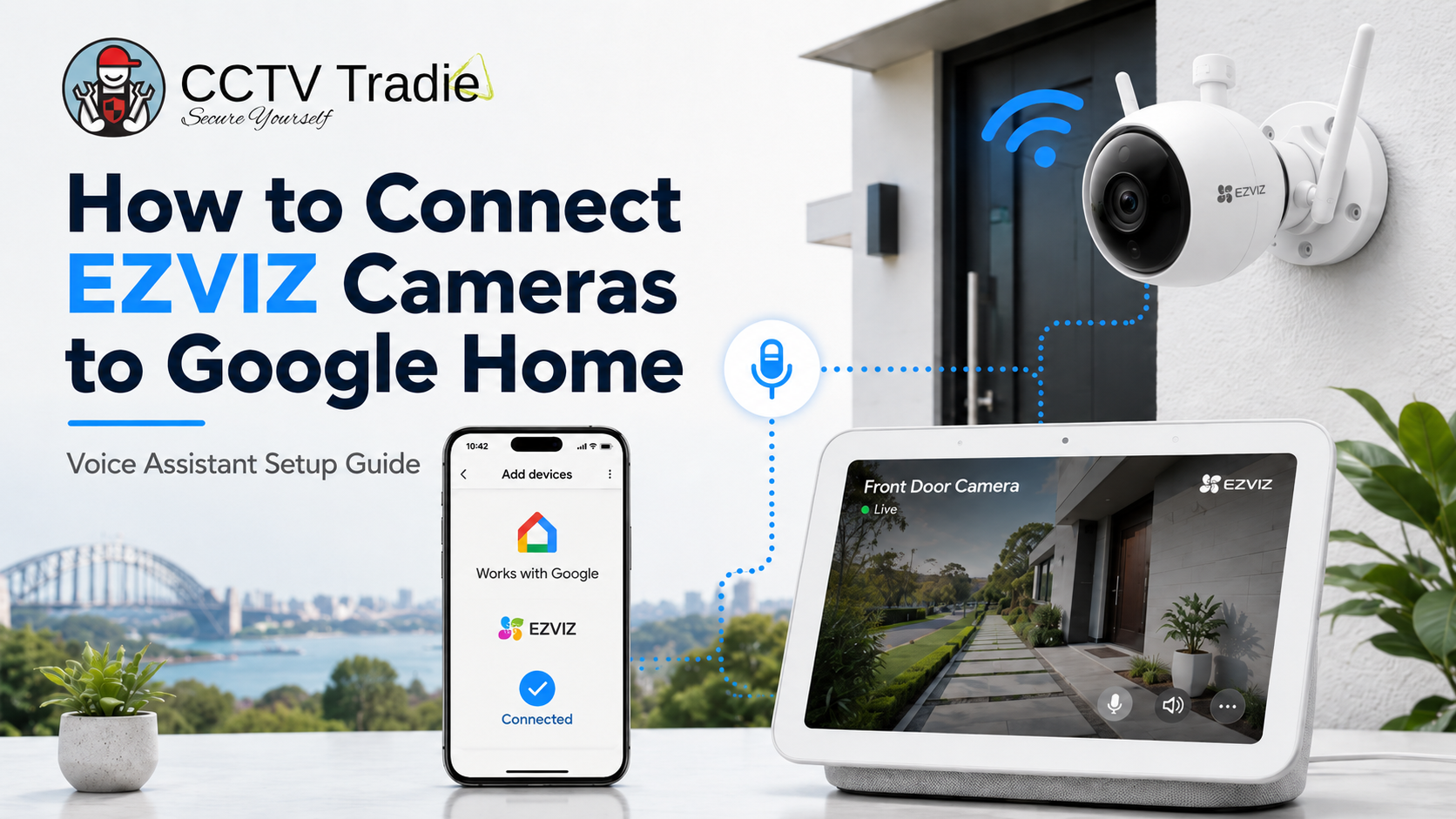
How to Connect EZVIZ Cameras to Google Home
Connecting an EZVIZ security camera to Google Home lets you use voice commands to view compatible cameras on supported Google Assistant displays, such as a Google Nest Hub or Chromecast-connected screen. The basic setup is straightforward: add the camera to the EZVIZ app, link EZVIZ inside Google Home, then ask Google to show the camera by name.
There is one important catch. Some EZVIZ cameras may require Image Encryption or Video Encryption to be turned off before voice assistant viewing will work. That makes setup easier, but it also changes the privacy posture of the camera feed, so it should be a deliberate decision rather than a rushed setting change.

Before You Start
Before connecting EZVIZ cameras to Google Home, check the following:
- The EZVIZ app is installed on your phone.
- The Google Home app is installed and signed in.
- Your EZVIZ camera has already been added to the EZVIZ app.
- Your camera has a clear, simple name such as “Front Door Camera”, “Driveway Camera” or “Baby Room Camera”.
- Your model supports Google Assistant or smart home integration.
Installer’s note: for Australian homes, avoid naming cameras with room names that sound too similar. “Front door” and “front yard” can confuse voice commands. “Driveway camera” and “porch camera” are usually easier for Google Assistant to understand.
Step 1: Add the EZVIZ Camera to the EZVIZ App
Set up the camera in the EZVIZ app first. Do not start inside Google Home until the camera is working properly in EZVIZ.
Open the EZVIZ app and confirm:
- Live view works.
- The camera is online.
- The camera name is easy to say.
- The camera firmware is up to date.
- The camera is connected to a stable Wi-Fi network.
Step 2: Rename the Camera in the EZVIZ App
A clean camera name makes voice control much easier.
In the EZVIZ app:
- Open the camera.
- Tap Settings.
- Tap the camera Name.
- Rename it to something short and clear.
Good examples:
- Front Door Camera
- Driveway Camera
- Garage Camera
- Backyard Camera
- Baby Room Camera
Avoid names like “Camera 1”, “C3N front angle” or “Outdoor cam near bins”. They are harder to say and easier for Google Assistant to mishear.
Step 3: Connect EZVIZ to Google Home
In the Google Home app:
- Open Google Home.
- Tap Add.
- Select Set up device.
- Choose Works with Google.
- Search for EZVIZ.
- Select EZVIZ.
- Sign in using your EZVIZ account details.
- Authorise Google Home to access your EZVIZ account.
- Follow the prompts to assign the camera to a home and room.
Step 4: Use Google Assistant Voice Commands
Once linked, try commands like:
“Hey Google, show me the front door camera.”
“Hey Google, show the driveway camera on the living room display.”
“Hey Google, stop.”
For a Google Nest Hub, you can usually ask Google to show the camera directly on that display. For Chromecast, specify the display name, such as “living room TV”.

What If the EZVIZ Camera Will Not Stream?
A common issue is that the camera appears in Google Home but the video stream does not load. One likely cause is EZVIZ Image Encryption or Video Encryption.
To turn off Image Encryption:
- Open the EZVIZ app.
- Select the camera.
- Open Settings.
- Look for Image Encryption or Video Encryption.
- Toggle it off.
- Enter the camera verification code if prompted.
Should You Turn Off EZVIZ Image Encryption?
We recommend only turning off Image Encryption when you genuinely need Google Home or Nest Hub live viewing.
For many Australian homes, the convenience is worth it for low-risk camera positions such as a driveway or front porch. For more sensitive areas, such as inside a home, children’s rooms, workshops or private indoor spaces, keeping encryption enabled may be the better choice.
A practical approach:
- Outdoor entry camera: Google Home viewing is useful.
- Driveway camera: Google Home viewing is useful.
- Indoor living area camera: consider carefully.
- Baby room or bedroom camera: we recommend keeping privacy settings as strong as possible.
Australian users should also follow general cyber hygiene guidance such as strong passwords, multi-factor authentication where available, timely updates and secure device configuration.

Step 5: Check Model Compatibility
Not every EZVIZ model behaves the same way with Google Home. Some EZVIZ cameras support Google Assistant, while others may have limited smart home compatibility depending on model, firmware and region.
Before buying, check:
- Whether the exact EZVIZ model supports Google Assistant.
- Whether the AU-supplied version has the expected firmware.
- Whether the feature works with your display type.
- Whether you are comfortable with the encryption setting required for streaming.
For Australian buyers, this is where local sourcing matters. Buying through Australian distribution channels helps reduce the risk of region-specific firmware issues, unsupported imports or warranty confusion.
How to Connect EZVIZ to Amazon Alexa
EZVIZ cameras can also be connected to Amazon Alexa.
In the Alexa app:
- Open Devices.
- Tap Add Device.
- Choose Camera.
- Select EZVIZ.
- Enable the EZVIZ skill.
- Sign in with your EZVIZ account.
- Tap Discover Devices.
- Check that the cameras appear under Alexa devices.

Troubleshooting EZVIZ and Google Home
Google Home cannot find the EZVIZ camera
Check that the camera is online in the EZVIZ app first. Then unlink and relink the EZVIZ service in Google Home.
Google Assistant says the stream is unavailable
Check Image Encryption or Video Encryption in the EZVIZ app. If it is enabled, Google Home display streaming may fail.
Google shows the wrong camera
Rename the cameras with clearer names. Avoid similar names such as “Front Camera” and “Front Door Camera”.
The camera keeps going offline
Check Wi-Fi signal strength near the camera. Outdoor cameras often connect poorly when installed through brick walls, metal garage doors or at the edge of router coverage.
The camera works in EZVIZ but not Google Home
Confirm the exact model supports Google Assistant. Some compatibility and product specifications vary by region, so check the product details before promising Google Home support to a customer.
Our Recommendation
We recommend setting up EZVIZ cameras in this order:
- Get the camera working properly in the EZVIZ app.
- Rename the camera clearly.
- Link EZVIZ in Google Home.
- Test voice viewing.
- Only then decide whether to disable Image Encryption.
For most Australian homes, EZVIZ works best as an affordable smart security option when the buyer understands the trade-off between voice assistant convenience and privacy settings.
Why Buy from CCTV Tradie
CCTV Tradie helps Australian customers choose security cameras that suit local homes, small businesses and installer requirements. When choosing EZVIZ or any smart security camera, local product advice matters because firmware, warranty, Wi-Fi conditions and app compatibility can all affect the result.
Buy from CCTV Tradie for:
- Australian-market product guidance.
- Practical advice before installation.
- Competitive pricing on security products.
- Support for choosing the right camera type.
- Better confidence around local warranty and distributor availability.
CTA: Need an EZVIZ camera that works with your smart home setup? Browse our EZVIZ and Wi-Fi security camera range or contact CCTV Tradie for product advice before you buy.
FAQs
Can EZVIZ cameras connect to Google Home?
Yes, compatible EZVIZ cameras can be linked to Google Home through the Works with Google setup flow. You must first add the camera to the EZVIZ app.
Why will my EZVIZ camera not show on Google Nest Hub?
The most common issue is Image Encryption or Video Encryption being enabled. Some EZVIZ cameras may need this setting turned off for voice assistant display viewing.
Is it safe to turn off EZVIZ Image Encryption?
It depends on the camera location and your privacy needs. For outdoor driveway or entry cameras, some users accept the trade-off. For indoor or sensitive areas, we recommend keeping stronger privacy settings enabled.
What voice command shows an EZVIZ camera on Google Home?
Try: “Hey Google, show me the front door camera.” Use the exact camera name from the EZVIZ or Google Home app.
Does EZVIZ work with Alexa as well?
Yes, compatible EZVIZ cameras can be connected to Amazon Alexa using the EZVIZ skill. As with Google Home, Image Encryption may need to be disabled for viewing on Alexa displays.
Last Updated
23 May 2026


