
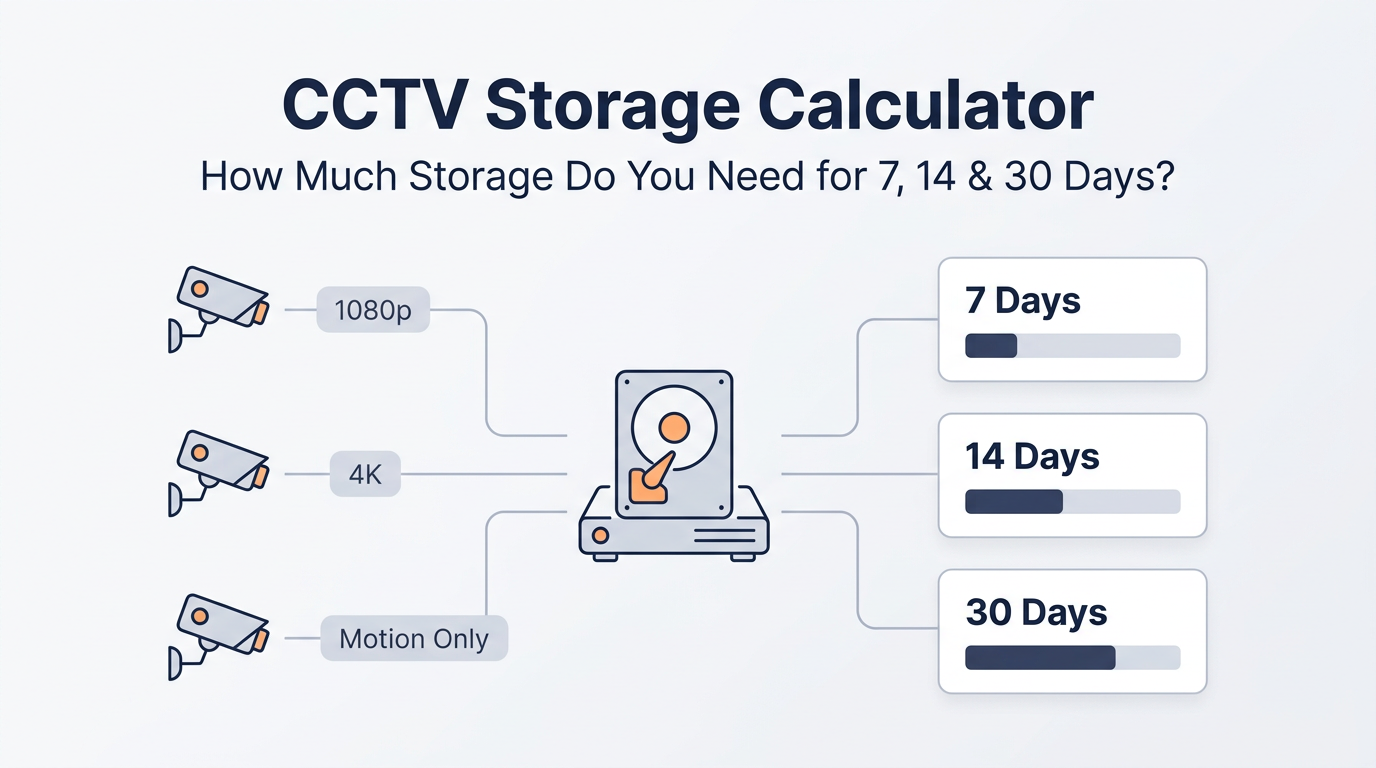
Most people don’t notice a problem the moment it happens. Sometimes you only spot something after a neighbour calls, an order goes missing, or you review footage days later.
In Australia, the latest crime victimisation release shows attempted break-ins and break-ins are still a reality for households (for example, attempted break-ins around 2.1%, and break-ins around 1.9%). Australian Bureau of Statistics also reports that in a large share of these incidents, something was stolen, and many incidents are reported to police.
That’s why choosing 7 vs 14 vs 30 days of retention is not just “tech talk”, it directly affects whether the footage is still there when you need it.
CCTV storage calculator (the simple method)
The cleanest way to estimate storage is by bitrate (Mbps). Bitrate is the amount of video data recorded per second, and it’s the main driver of storage. Axis Communications even emphasises that bitrate is the key factor when sizing retention.
Step 1: Get your bitrate (Mbps)
You can usually find bitrate in:
-
Your camera’s encoding settings (main stream)
-
Your NVR “record” settings
-
A manufacturer guideline (if you don’t know what to set)
For a practical reference, Hikvision provides approximate recommended bitrates by resolution and FPS. It also notes that if the scene is more complex, you may need to increase bitrate by 20% to 30%.
Step 2: Use this storage formula
Storage (GB) = Bitrate (Mbps) × 10.8 × Hours/day × Days × Cameras ÷ 24
Why 10.8? Because 1 Mbps recorded 24/7 is about 10.8 GB per day (decimal). You’ll see the same relationship in Axis Communications tables (example: 0.64 Mb/s ≈ 6.91 GB/day).
Step 3: Add headroom
Real systems are rarely “perfect averages”. Add:
-
20% headroom as a safe baseline
-
30% headroom if you have lots of motion (busy shopfronts, traffic, active warehouses), aligning with the “increase bitrate 20–30%” guidance.
Quick table: storage per camera (24/7 recording)
Below is a fast guide you can use even before opening your camera settings.
Per camera, 24/7, with 20% headroom:
-
1 Mbps: ~0.09 TB (7d) | ~0.18 TB (14d) | ~0.39 TB (30d)
-
2 Mbps: ~0.18 TB (7d) | ~0.36 TB (14d) | ~0.78 TB (30d)
-
4 Mbps: ~0.36 TB (7d) | ~0.72 TB (14d) | ~1.56 TB (30d)
(These are rounded. Your NVR may show slightly different usable capacity.)
Worked examples for 7, 14, 30 days (realistic home and small business setups)
To keep this practical, I’m using common “sweet spot” settings: H.265, ~15 FPS, which often delivers smooth, usable footage without crazy storage.
Example A: 4 cameras at 1080p (15 FPS, H.265)
A common target bitrate for 1080p at 15 FPS is about 1024 Kbps (1.024 Mbps).
Storage for 4 cams (incl. 20% headroom):
-
7 days: ~0.37 TB
-
14 days: ~0.74 TB
-
30 days: ~1.59 TB
Practical pick: 2TB gives comfortable breathing room.
Example B: 4 cameras at 4MP / 1440p (15 FPS, H.265)
A common target bitrate for 4MP at 15 FPS is about 2048 Kbps (2.048 Mbps).
Storage for 4 cams (incl. 20% headroom):
-
7 days: ~0.74 TB
-
14 days: ~1.49 TB
-
30 days: ~3.19 TB
Practical pick: 4TB for 30 days.
Example C: 4 cameras at 4K / 8MP (15 FPS, H.265)
A common target bitrate for 3840×2160 at 15 FPS is about 4096 Kbps (4.096 Mbps).
Storage for 4 cams (incl. 20% headroom):
-
7 days: ~1.49 TB
-
14 days: ~2.97 TB
-
30 days: ~6.37 TB
Practical pick: 8TB for 30 days (or more if the scene is busy).
24/7 vs motion recording (this changes everything)
If you record motion only, your retention can jump a lot because you’re not saving hours of “nothing happening”.
In some default profiles, motion-based recording is assumed at around 50% of the time (12 hours daily). Axis Communications shows examples built on this kind of assumption.
A simple shortcut:
-
If you think your cameras only record 12 hours of useful motion per day, you can roughly halve the storage estimate (then still keep your 20–30% headroom).
H.264 vs H.265 (why codec choice affects HDD size)
If your recorder and cameras support H.265, it’s usually worth using because it can reduce file size at similar quality (but results vary).
-
One surveillance-focused overview states H.265 can offer about 25–50% better compression than H.264 (at similar quality). Secure Logiq
-
A broader codec comparison commonly describes H.265 files as about half the size at comparable quality. Epiphan Video
Translation: switching to H.265 can be the difference between needing 4TB vs 8TB, depending on your settings and scene.
Choosing the right hard drive (don’t use “any old desktop HDD”)
For CCTV/NVR recording, pick surveillance-grade drives designed for 24/7 writes and multi-camera workloads.
On CCTV Importers, you can point readers to:
-
Surveillance Hard Drives (HDDs) (WD Purple, Seagate SkyHawk, plus surveillance microSD options)
-
NVRs (including options with installed drives)
If the customer is unsure, direct them to the quick form:
-
Tell Us What You Need (custom kits and recommendations) - https://cctvimporters.com.au/pages/tell-us-what-you-need
Pro tips to get 30-day retention without massive drives
-
Drop FPS to 12–15 for general areas (entries, driveways, aisles).
-
Use H.265 if supported (verify playback compatibility first).
-
Set a sensible bitrate cap, then add 20–30% if the scene is busy.
-
Use motion schedules for low-traffic time windows (after-hours, back corridors).
FAQs
How much storage do I need for 30 days of CCTV?
A quick rule: 1 Mbps per camera ≈ 0.39 TB per camera for 30 days (including 20% headroom). Use the calculator above for your exact bitrate and camera count.
Is 7 days of CCTV storage enough?
It can be, if you check footage frequently and you mainly want quick incident verification. If you might discover issues later (deliveries, disputes, vandalism), 14 or 30 days is safer.
What’s the easiest way to estimate CCTV storage?
Use a tool like the Western Digital surveillance storage capacity estimator, then sanity-check it with the simple bitrate formula in this blog.


